Cloud SQL backs up an instance once a day and, with point-in-time recovery on, keeps the write-ahead log between backups, so you can return to any second of the last 7 days on Enterprise, up to 35 on Enterprise Plus. From gcloud or Terraform on Enterprise, point-in-time recovery starts off. To get a table back, clone the instance to a moment before the mistake and copy the rows back.
In short
- Keep one more backup than days of logs: on Enterprise, 8 backups and 7 days of logs.
- A restore over the live instance loses everything written since the backup; a point-in-time clone is a new instance that bills $0.0105 an hour for a micro while it runs.
- Without retained backups or a final backup, deleting the instance deletes its backups; a final backup is kept 30 days by default.
- Backups cost $0.08 per GiB a month in europe-west1, and the logs in Cloud Storage cost nothing extra.
Prices are europe-west1 list prices from the Cloud Billing Catalog API, October 12, 2026. Every command was checked against gcloud 587.0.0 on the same day.
Four things that keep your data, and what each is for
Cloud SQL for PostgreSQL has four mechanisms, and they protect against different accidents. A SaaS architecture on Cloud Run keeps every tenant in one database, so there these settings protect every customer at once.
An automated backup is a snapshot of the instance's whole disk, taken once a day during a 4-hour window that starts at the time you choose. Backups are incremental: the oldest one is about the size of the database and each later one holds only what changed. On the Enterprise edition Cloud SQL keeps 7 by default and you can keep 1 to 365. Enterprise Plus keeps 15 by default. When the count is reached, the oldest is deleted.
An on-demand backup is the same snapshot taken when you ask, for example before a risky migration. It stays until you delete it or delete the instance.
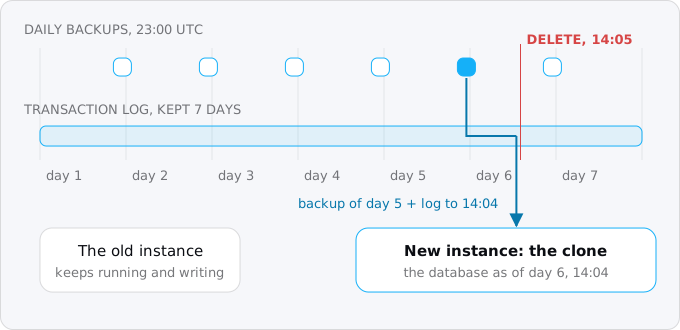
Point-in-time recovery (PITR) keeps the write-ahead log, the record of every change Postgres makes, between backups. Google stores these logs in Cloud Storage for 1 to 7 days on Enterprise, 7 by default, and 1 to 35 on Enterprise Plus, 14 by default. To recover, Cloud SQL takes the backup before the moment you name and replays the log up to that moment. Google says PITR "typically offers a recovery point objective of five minutes or less" when an instance becomes unavailable; for a mistake you can see, you pick the exact second.
An export is a SQL dump that Cloud SQL writes to a Cloud Storage bucket you own. Backups are managed by Cloud SQL by its retention rules; an export lives as long as you keep the file, can be loaded into any Postgres, and does not disappear with the instance.
There are two more settings for the day the instance itself is deleted. Retained backups keep the automated and on-demand backups after the instance is gone. A final backup is one more backup taken at deletion and kept 30 days by default, 1 to 365 days on standard backups. Without either, Google's page is blunt: if you delete an instance without a final backup, "no data recovery is possible", apart from a request to Customer Care within four days.
Cloud SQL also offers enhanced backups, kept in a Backup and DR vault, possibly in another project, with hourly schedules, retention up to 10 years and a retention lock. They are for an organisation that must show its backups survive a deleted project. Everything below uses standard backups, what an instance gets unless you attach a backup plan.
Step 1: see what your instance has
Defaults differ by edition and by how the instance was made:
- PITR is on by default on Enterprise Plus however you create the instance. On Enterprise it is on by default only from the console; from
gcloud, Terraform or the API it is off until you enable it. - Automated backups are on when the instance is created in the console.
gcloud sql instances create --helpsays--backupis "Enabled by default", while Google's PITR page says that fromgcloud, Terraform or the API you must turn backups on yourself. With two Google pages disagreeing, read the setting rather than trust either. - Deletion protection is off unless the instance was created in the console or with Terraform.
One command shows the backup settings:
gcloud sql instances describe app-db \
  --format="yaml(settings.backupConfiguration)"
The fields that matter are enabled (daily backups), startTime (the window's start, in UTC), backupRetentionSettings.retainedBackups, pointInTimeRecoveryEnabled, transactionLogRetentionDays and transactionalLogStorageState, which says whether the logs are in CLOUD_STORAGE or on the instance's DISK. Then list the backups and ask how far back you can go:
gcloud sql backups list --instance app-db
gcloud sql instances get-latest-recovery-time app-db
The second command returns earliestRecoveryTime and latestRecoveryTime, the window you can restore into. Run it now, while nothing is wrong, so you know what the numbers look like.
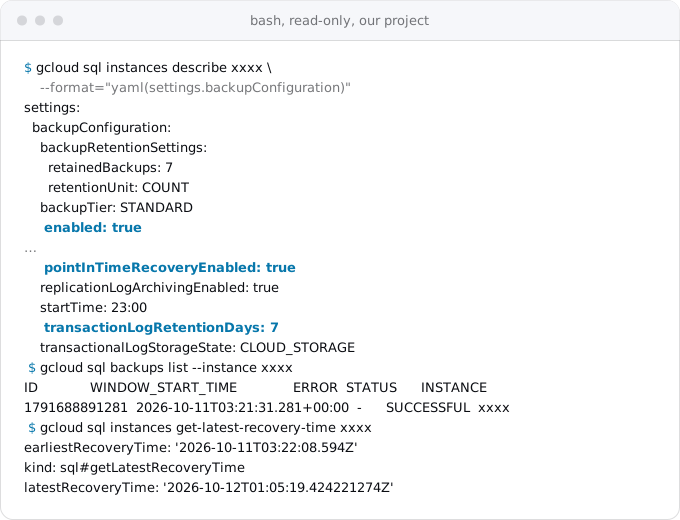
Our instance was created by Terraform and has backups and PITR on with the Enterprise defaults: 7 backups, 7 days of logs, which is the mistake the next step fixes. Its one backup so far holds 7,760,512 chargeable bytes, six hundredths of a cent a month.
Step 2: set the four backup settings
The backup window. Pick the hour when the database is quietest, in UTC:
gcloud sql instances patch app-db --backup-start-time=02:00The backup can start any time in the 4 hours after it.
The number of backups. Google's own rule: log retention must not exceed backup retention, logs are purged once a day, and with equal numbers "between six and seven days of logs will be retained". Its recommendation is one more backup than days of logs:
gcloud sql instances patch app-db --retained-backups-count=8Point-in-time recovery and its log days. If pointInTimeRecoveryEnabled is false:
gcloud sql instances patch app-db \
  --enable-point-in-time-recovery \
  --retained-transaction-log-days=7
Enabling PITR on an existing instance restarts it, so do it in a quiet hour. On Enterprise 7 days is the maximum. If you need a longer reach, keep more daily backups: they can go back a year, at a one-day resolution instead of one second.
Where the logs live. Instances that turned PITR on before January 9, 2023 may still keep logs on their own disk, where they use storage you pay for and can fill it. The first command shows each instance's state; if one says DISK, the second moves new logs to Cloud Storage without downtime, over about as many days as the log retention:
gcloud sql instances list --show-transactional-log-storage-state
gcloud sql instances patch app-db \
  --switch-transaction-logs-to-cloud-storage
By default backups go to the nearest multi-region; ours, in europe-west1, are in eu. Change it with --backup-location only if a data residency rule requires it.
Step 3: make deleting the instance survivable
Three settings, each one line:
gcloud sql instances patch app-db --deletion-protection
gcloud sql instances patch app-db --retain-backups-on-delete
gcloud sql instances patch app-db --final-backup --final-backup-retention-days=30
Deletion protection makes a delete fail until someone turns it off. It does not stop a restart, an edit, deleting a backup, deleting the project, or Google suspending the instance for an unpaid bill. Retained backups keep the existing backups after the instance is deleted; automated ones then expire one a day on the old schedule, on-demand ones stay until you delete them. With PITR and retained backups both on, the logs are retained too, so you can still clone a deleted instance to a moment before its deletion. A final backup takes one more backup at deletion. Without the setting, adding --enable-final-backup to gcloud sql instances delete does the same for that one delete.
Google's console notes that turning on final or retained backups restarts the instance; plan these for the same quiet hour as PITR.
Step 4: keep a copy that is yours
Everything above lives in the same project as the instance. An export to a bucket is a copy you control: it is plain SQL, any Postgres can load it, and nothing in Cloud SQL's retention touches it. The instance writes the file itself, so its service account needs access to the bucket:
gcloud storage buckets create gs://app-db-exports --location=europe-west1
SA=$(gcloud sql instances describe app-db --format='value(serviceAccountEmailAddress)')
gcloud storage buckets add-iam-policy-binding gs://app-db-exports \
  --member="serviceAccount:$SA" --role=roles/storage.objectAdmin
gcloud sql export sql app-db gs://app-db-exports/app-$(date -u +%F).sql.gz \
  --database=app --offload
--offload runs the export on a temporary instance, so the database you are serving from does not carry the load, for $0.01 per GiB of the instance's disk size. Without it the export runs on your instance. Google notes that export sql leaves out triggers and stored procedures; if your schema has them, take the dump with pg_dump through the Auth Proxy instead, as the guide to moving a Postgres database does. A nightly export is a job for Cloud Scheduler, which the cron and timers guide covers.
Getting back a table after a bad change
The usual case: a migration drops a column or a script updates every row, while the rest of the database is fine and the app keeps writing. Restoring a backup over the live instance would roll back everything, including the good writes since. The way out is a clone.
1. Write down the time. Find the moment of the mistake in UTC from the app's logs, the Postgres log or the migration's output. Pick a time a few seconds before it. Cloud SQL wants RFC 3339 in UTC, for example 2026-10-12T14:04:30Z.
2. Check the window. get-latest-recovery-time from Step 1 must show a window that contains your time. A time after latestRecoveryTime fails with "The timestamp for point-in-time recovery is after the latest recovery time", and a time before the first backup fails with "Successful backup required for carrying out the operation was not found".
3. Clone to that moment:
gcloud sql instances clone app-db app-db-0412 \
  --point-in-time='2026-10-12T14:04:30Z'
The clone is a new instance with the source's settings and its own bill. How long it takes depends on the database; the drill below is how you find out. The account running it needs the cloudsql.instances.clone permission.
4. Look before you copy. Connect to the clone, through the Auth Proxy as in the connection guide, and check that the rows are there and look right.
5. Copy the rows back. For a dropped or emptied table, dump it from the clone and load it into the live database:
pg_dump "host=127.0.0.1 port=5433 dbname=app user=postgres" \
  --table=orders --data-only --format=custom > orders.dump
pg_restore --dbname="host=127.0.0.1 port=5432 dbname=app user=postgres" \
  --data-only --exit-on-error orders.dump
Here the clone's proxy listens on 5433 and the live database's on 5432. For rows that were changed rather than deleted, copy them into a scratch table and fix the live table with an UPDATE ... FROM. The clone lacks the writes made after your chosen moment and the live database has them: you are merging, not replacing.
6. Delete the clone when you are done, with gcloud sql instances delete and its name. It bills by the hour until you do, and since a clone inherits deletion protection from its source, you may have to turn that off first with --no-deletion-protection.
We ran the same mechanism on a local Postgres 17, where the parts are visible: a base backup stands in for the daily backup, archived WAL files for the transaction logs, and a second server for the clone.
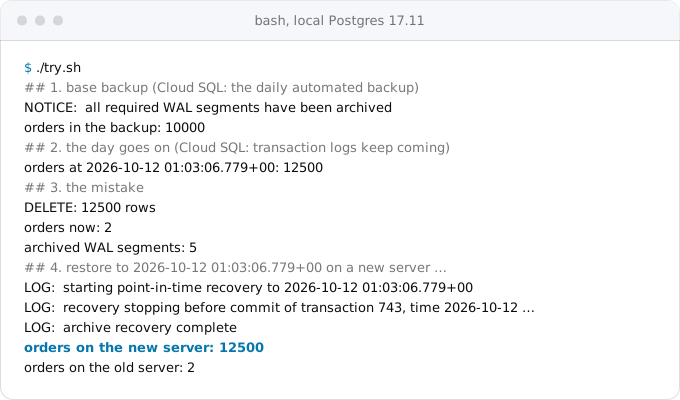
The new server stopped "before commit of transaction 743", the DELETE, with all 12,500 orders.
Restoring a backup: when the whole database must go back
A restore copies a backup onto an instance: the tool for when the whole database is wrong, or for a staging copy of production.
gcloud sql backups list --instance app-db
gcloud sql backups restore 1791688891281 --restore-instance=app-db
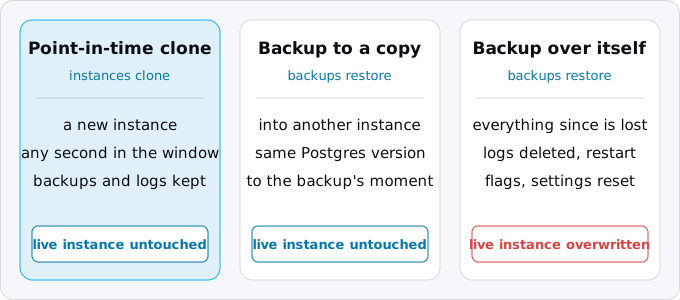
Restoring onto the same instance does more than replace the data, and Google lists it all:
- It overwrites all data on the target instance, including everything written since the backup.
- It deletes the PITR logs, so you cannot recover to any time before the restore afterwards. The earlier backups stay.
- It drops every connection and restarts the instance.
- It does not restore database flags, and it resets the backup settings to defaults, so you redo Steps 2 and 3.
- Read replicas must be deleted before and created again after.
Restoring to another instance is safer. Create an empty instance with the same Postgres version, then:
gcloud sql backups restore 1791688891281 \
  --restore-instance=app-db-copy --backup-instance=app-db
Add --backup-project if the copy is in another project. A backup only restores to the same major version it was taken on; a backup is not an upgrade path.
Limits: three restores per 30 minutes, five backup operations per 50 minutes per instance; failed ones do not count.
Rehearse it once
A backup you have never restored is a guess. The drill is the clone from the section above, done on a quiet day: pick a time an hour ago, clone, connect, count the rows of the tables you care about, delete the clone. On a db-f1-micro with 10 GiB of storage, two hours of a clone cost about $0.03 at europe-west1 list prices. Write down how long the clone took, because that is how long your app will run without the data the day it matters.
What it costs
Prices are europe-west1 list prices from the Cloud Billing Catalog API, October 12, 2026:
- Backups: $0.08 per GiB-month of backup storage. Google bills the size of each backup, and since they are incremental, 7 backups of a database that changes little cost a little more than one. As an illustration, a 10 GiB database that changes 200 MiB a day keeps about 11.2 GiB in 7 backups, about $0.90 a month. Ours, at 7.4 MiB, costs a fraction of a cent.
- Transaction logs for PITR: no extra charge when they are in Cloud Storage. Logs kept on the instance's disk use storage at $0.17 per GiB-month.
- On-demand and retained backups: the same $0.08, for as long as they exist. On-demand backups are never deleted automatically, so they accumulate.
- A clone or a restore to a new instance: the instance's own price while it runs, $0.0105 an hour for a micro plus its storage. The Cloud SQL price ladder has the other machines.
- Exports: Cloud Storage Standard in Belgium at $0.02 per GiB-month for the files, plus $0.01 per GiB of disk size for each
--offloadexport. - Enhanced backups: Backup and DR's management charge of $0.05 per GiB-month for Cloud SQL, plus vault storage, billed to the vault's project; its standard long-term tier is $0.045 per GiB-month.
Deleting an old backup can free less space than its size, because its data moves into the next backup to keep that one complete.
What breaks
- PITR was never on. The instance was created from
gcloudor Terraform on Enterprise andpointInTimeRecoveryEnabledis false. You can go back only to a daily backup. Check today. - Restoring over the live instance to undo one table. Everything written since the backup is gone, and so are the logs that could have saved it. Clone instead.
- Deleting the instance deletes the backups. Unless retained backups or a final backup was on. Deletion protection does not save you from a deleted project.
- The window in your head is not UTC.
--backup-start-timeand--point-in-timeare both UTC. A clone to "14:04" local time can be hours off. - Writes after the mistake. The clone does not have them. Merge into the live database rather than switching the app to the clone, or you lose them.
- The clone is still running. It bills like any instance, has the source's deletion protection, and is easy to forget.
- A backup marked failed that is not. On our instance the first backup is
SUCCESSFULingcloud sql backups list, while the audit log entry for the same window saysSTATUS_ATTEMPT_FAILED. Google's list of reasons for that status includes "the backup of the instance completed, but an error occurred". Alert onSTATUS_FAILEDand look at the backups list before you panic. Google does not email you about failed backups; it asks you to build a log-based alert on thecloudsql.instances.automatedBackupentries of the System Event audit log. - Skipped backups. The API records a backup as
SKIPPEDwhen the instance was idle, and asOVERDUEwhen something ran through the whole window, such as a long operation. Neither is an error you get told about. - Logs on disk filling the disk. Older instances that keep PITR logs on disk use the instance's own storage for them, and Google recommends automatic storage increases for exactly this case. Switch the logs to Cloud Storage.
Checklist
- Run
describeand readenabled,pointInTimeRecoveryEnabled,transactionLogRetentionDaysandtransactionalLogStorageState. - Set a backup start time in a quiet UTC hour.
- Keep one more backup than days of logs: 8 and 7 on Enterprise.
- Turn on deletion protection, retained backups and a final backup.
- Take an on-demand backup with
gcloud sql backups createbefore every risky migration. - Export nightly to a bucket you own, with
--offloadif the database is busy. - Build a log-based alert on
STATUS_FAILED. - Rehearse a point-in-time clone once, time it, and delete the clone.
Where Exodus comes in
The report Exodus writes for an app that moves to Cloud SQL lists backups and point-in-time recovery among what the move gives you. That is only true if the instance is created with them, and from the command line on the Enterprise edition point-in-time recovery starts off. So this guide is the one the agent running the move checks the new instance against: the describe output, one more backup than days of logs, deletion protection and retained backups, and an on-demand backup before the first real write.
FAQ
Are Cloud SQL backups on by default?
Automated backups are on when the instance is created in the console, and gcloud's help says they are enabled by default, while Google's PITR page says that from gcloud, Terraform or the API you turn them on yourself. Point-in-time recovery is on by default on Enterprise Plus, and on Enterprise only from the console. Read the instance's settings.
How do I restore one table in Cloud SQL?
Clone the instance with point-in-time recovery to a moment a few seconds before the mistake, check the rows on the clone, dump the table with pg_dump and load it into the live database with pg_restore, then delete the clone. Restoring a backup over the live instance would roll back every write since the backup.
How much do Cloud SQL backups cost?
$0.08 per GiB a month of backup storage in europe-west1, at list prices of October 12, 2026. Backups are incremental, so 7 backups of a 10 GiB database that changes 200 MiB a day hold about 11.2 GiB, about $0.90 a month. Transaction logs in Cloud Storage cost nothing extra.
What happens to backups when a Cloud SQL instance is deleted?
They are deleted with it, unless retained backups or a final backup was on. Retained backups keep the existing ones; a final backup is taken at deletion and kept 30 days by default. Without either, Google says no data recovery is possible, apart from a request to Customer Care within four days.
Sources
18
- docs.cloud.google.comCloud SQL backups overview, Cloud SQL for PostgreSQL, Google
- docs.cloud.google.comChoose your backup option, Cloud SQL for PostgreSQL, Google
- docs.cloud.google.comManage standard backups, Cloud SQL for PostgreSQL, Google
- docs.cloud.google.comRestore an instance overview, Cloud SQL for PostgreSQL, Google
- docs.cloud.google.comRestore an instance, Cloud SQL for PostgreSQL, Google
- docs.cloud.google.comPerform point-in-time recovery, Cloud SQL for PostgreSQL, Google
- docs.cloud.google.comConfigure point-in-time recovery, Cloud SQL for PostgreSQL, Google
- docs.cloud.google.comManage backups for deleted instances, Cloud SQL for PostgreSQL, Google
- docs.cloud.google.comView audit logs for automated backups, Cloud SQL for PostgreSQL, Google
- docs.cloud.google.combackupRuns REST reference, Cloud SQL Admin API v1beta4, Google
- docs.cloud.google.comPrevent deletion of an instance, Cloud SQL for PostgreSQL, Google
- docs.cloud.google.comExport and import using SQL dump files, Cloud SQL for PostgreSQL, Google
- cloud.google.comCloud SQL pricing, Google
- cloud.google.comCloud Billing Catalog API, Google
- cloud.google.comBackup and DR Service pricing, Google
- docs.cloud.google.comgcloud reference, Google Cloud SDK 587.0.0
- postgresql.orgContinuous Archiving and Point-in-Time Recovery, PostgreSQL 18 documentation
- Exodus team: a local point-in-time recovery on Postgres 17.11