Cloud Run connects to Cloud SQL in one of three ways: the built-in /cloudsql Unix socket, turned on with one deploy flag and the Cloud SQL Client role; a Google connector library inside the app; or a private IP reached through Direct VPC egress on port 5432. Start with the socket: it is encrypted, checked by IAM, needs no IP allowlist and has no charge in the same region.
In short
--add-cloudsql-instancesplus the Cloud SQL Client role gives a service a Unix socket at/cloudsql/PROJECT:REGION:INSTANCE, tunnelled over TLS to port 3307.- Each Cloud Run instance opens at most 100 connections through the socket; the smallest Cloud SQL instance accepts 25 by default.
- A socket path is limited to 108 characters, and pg8000 wants the
.s.PGSQL.5432file name where other drivers take the directory. - Same-region traffic costs $0; a public IPv4 address costs $0.01 an hour only while the instance is stopped.
Pages were read and commands checked on October 12, 2026.
Three ways in
A Cloud Run service has no fixed IP address and no server you can log in to, so a host and port in DATABASE_URL, an IP allowlist or a tunnel installed next to the app do not carry over as they are. This guide covers Cloud SQL for PostgreSQL; Google keeps a version of its Cloud Run page for MySQL and for SQL Server. Which database to choose is in Cloud SQL, Firestore or a serverless Postgres, and what an instance costs is in the smallest Cloud SQL instances.
- The built-in connection. Deploy with
--add-cloudsql-instancesand the instance's connection name, give the service's account (the identity it runs as) the Cloud SQL Client role, and point your driver at the Unix socket/cloudsql/PROJECT_ID:REGION:INSTANCE, a file-like address that programs on one machine talk through instead of a network port. The instance keeps its default public IP, needs no allowlist, and the traffic is encrypted. Permissions are checked by IAM, Google Cloud's permission system. Start here. - A connector library. Google's Java, Python, Go and Node.js connectors do the same work inside your process. Use one for Java, which has no Unix sockets, for logging in to the database as the service account with no password, or when 100 connections per instance is too few.
- A private IP. The instance gets an address inside your VPC network (your private network in Google Cloud), the service reaches it through Direct VPC egress, and your driver connects to that address on port 5432. Use it when the instance must have no public IP at all.
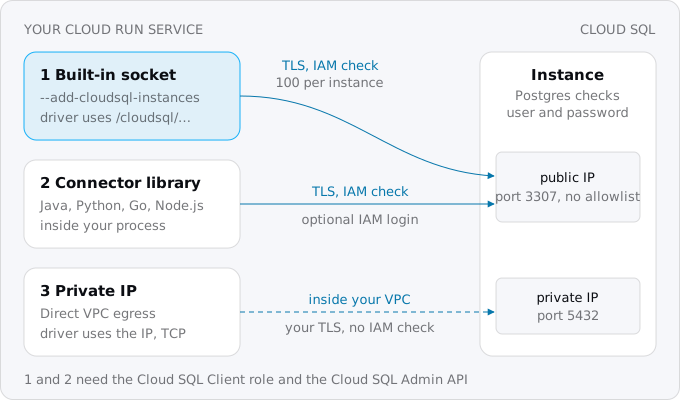
What the flag does
When a revision has a Cloud SQL connection, Cloud Run runs a Cloud SQL Auth Proxy for it, a Google program that opens an encrypted tunnel to the database after an IAM check, so your image does not have to contain one, and mounts a directory at /cloudsql. Inside it is one Unix socket per instance, named after the instance connection name, the project:region:instance string that identifies a Cloud SQL instance. Your driver talks plain Postgres to that socket, as it would to a database on the same machine.
The proxy does the rest. On the first connection it asks the Cloud SQL Admin API, the interface that manages instances, for a short-lived client certificate, which expires in about an hour and is refreshed before that, and opens a TLS tunnel to the instance's public IP on port 3307. The Admin API only issues that certificate to an identity with the cloudsql.instances.connect permission, which is in the Cloud SQL Client role. So the gate is IAM, not an IP allowlist, and the instance's public IP does not need an authorized network.
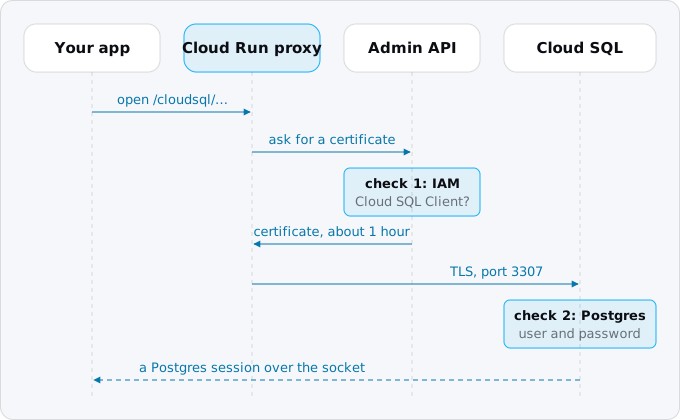
Two checks follow from this, and they fail with different errors. IAM decides whether the service may reach the instance at all. Postgres then checks the user name and password like any Postgres. When a connection fails, the error shows which of the two refused it, as the list at the end of this guide does.
Three more facts about the flag matter later:
- Each Cloud Run instance can open at most 100 connections through it. Google's quotas page says the limit applies only to this built-in connection.
- It uses your Admin API quota. Google estimates the quota used at about twice the number of Cloud SQL instances times the number of Cloud Run instances running, and the Connect category allows 1,000 requests a minute per user per region by default.
- The first generation execution environment, the older of Cloud Run's two runtimes, embeds Auth Proxy v1, which connects only to instances with the default per-instance certificate authority, the signer of the instance's certificate. More on that under "What breaks".
Step 1: the instance and its connection name
The Admin API must be on in the project the service runs in. If the instance lives in another project, it must be on in both, and the role is granted in the instance's project.
gcloud services enable sqladmin.googleapis.com
gcloud sql instances describe app-db --format='value(connectionName)'
The second command prints the connection name, such as PROJECT_ID:europe-west1:app-db. Put the instance in the service's region: Google recommends it for latency, for cost and so that one region's failure does not take both down (choosing a Cloud Run region covers the choice). A new instance gets a public IP by default, and nothing else is needed for the built-in connection. The same describe command shows whether the instance has daily backups and point-in-time recovery on; backups and point-in-time recovery on Cloud SQL lists the settings to check on day one.
Step 2: a database user and its password
Create the user the app logs in as, with a password generated into a file only you can read:
umask 077
openssl rand -base64 24 | tr -d '/+=\n' > db-pass.txt
gcloud sql users create app --instance=app-db --password="$(cat db-pass.txt)"
gcloud sql databases create app --instance=app-db
users create has no prompt option, so the password is on your machine's command line for a moment; to change it later without that, gcloud sql users set-password app --instance=app-db --prompt-for-password asks for it instead. A user created this way gets the cloudsqlsuperuser role, which can create databases and roles; for an app that only reads and writes its own tables, grant it less with GRANT from psql.
Then put the password in Secret Manager and let the service's account read it, as secrets on Cloud Run explains step by step. Give the service its own service account, so the roles you grant apply to this service only (IAM for a Cloud Run app has the full set of roles):
gcloud iam service-accounts create app-run
gcloud secrets create db-pass --data-file=db-pass.txt
rm db-pass.txt
gcloud secrets add-iam-policy-binding db-pass \
  --member=serviceAccount:app-run@PROJECT_ID.iam.gserviceaccount.com \
  --role=roles/secretmanager.secretAccessor
gcloud projects add-iam-policy-binding PROJECT_ID \
  --member=serviceAccount:app-run@PROJECT_ID.iam.gserviceaccount.com \
  --role=roles/cloudsql.client
Step 3: deploy with the connection
gcloud run deploy app --image=IMAGE --region=europe-west1 \
  --service-account=app-run@PROJECT_ID.iam.gserviceaccount.com \
  --add-cloudsql-instances=PROJECT_ID:europe-west1:app-db \
  --set-env-vars=DB_SOCKET=/cloudsql/PROJECT_ID:europe-west1:app-db,DB_USER=app,DB_NAME=app \
  --set-secrets=DB_PASS=db-pass:1
--add-cloudsql-instances appends to the instances a service already has; --set-cloudsql-instances replaces the list, --remove-cloudsql-instances and --clear-cloudsql-instances take instances away. The connection is part of the revision, so every later revision keeps it until you change it. db-pass:1 pins the secret's version, which Google recommends over latest for environment variables. Jobs, such as a migration job, take --set-cloudsql-instances on gcloud run jobs deploy; database migrations as Cloud Run jobs shows the whole job.
Step 4: the connection string your driver wants
This step depends on the driver (Node, Python, Rails and Go on Cloud Run has the rest of each stack's setup), because each one spells "connect to a Unix socket in this directory" differently. The rule underneath is Postgres's own: a host that starts with a slash is a directory holding a socket file named .s.PGSQL.5432, not a machine.
To check the spellings, we ran Postgres 17 listening only on a Unix socket and mounted its directory into client containers under /cloudsql/, named like a real instance, the path Cloud Run uses. The clients had no network at all, so a pass could only come through the socket. The script is in our research notes, runs with Docker, and touches no project.
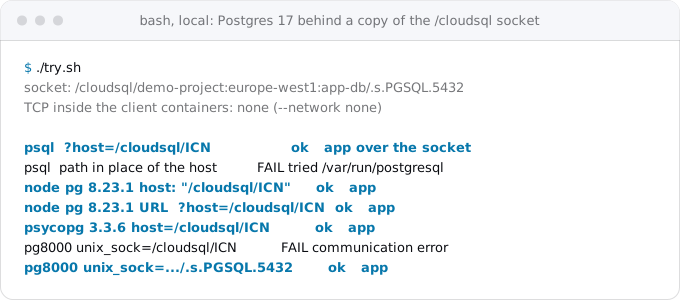
The spellings that worked, and those Google's and the vendors' pages give for the rest, with S standing for the socket directory, /cloudsql/ followed by the connection name:
URL (libpq, psql, Rails)  postgresql://app:PASSWORD@/app?host=S
node-postgres             { host: 'S', user, password, database }
Prisma (ORM 6)            postgresql://app:PASSWORD@localhost/app?host=S
psycopg, Django           host='S'          Django: HOST = 'S'
SQLAlchemy + psycopg2     postgresql+psycopg2://app:PASSWORD@/app?host=S
pg8000                    unix_sock='S/.s.PGSQL.5432'
Go, pgx                   host=S user=app password=PASSWORD dbname=app
PHP PDO                   pgsql:dbname=app;host=S
.NET Npgsql               Host=S;Username=app;Password=PASSWORD;Database=app
Java                      jdbc:postgresql:///app?cloudSqlInstance=PROJECT_ID:europe-west1:app-db
                            &socketFactory=com.google.cloud.sql.postgres.SocketFactory
What the test and the pages add to that list:
- URL-based drivers want the directory in the `host` query parameter. Putting the path where the host name usually goes fails: in our run libpq ignored it and looked in its default
/var/run/postgresql. Percent-encode the password if it has characters such as@or/. Prisma's page also wants a dummy host name, which it ignores; we did not run Prisma. - node-postgres passed with
hostin the config object and with the URL asconnectionString; psycopg passed withhost. - pg8000 wants the socket file, not the directory. With the directory it failed with "communication error". Google's page warns that some libraries need the
.s.PGSQL.5432suffix. - Java: Google's sample notes that "Unix sockets are not natively supported in Java" and uses the Cloud SQL Java connector as a JDBC socket factory, written on one line in the real URL.
A socket path on Linux is limited to 108 characters. /cloudsql/, the connection name and /.s.PGSQL.5432 together must fit, so very long project or instance names cannot use the socket at all.
Then check what the service really has. These commands only read. The first shows the connection name, whether the public IP is on and the instance's TLS settings; the second shows whether the revision has the connection and whether an execution environment is set. On our own project, where one of eight services uses Cloud SQL, they printed this:
gcloud sql instances describe app-db \
  --format='yaml(connectionName,settings.ipConfiguration)'
gcloud run services describe app --region=europe-west1 --format=yaml \
  | grep -E 'cloudsql|execution-environment'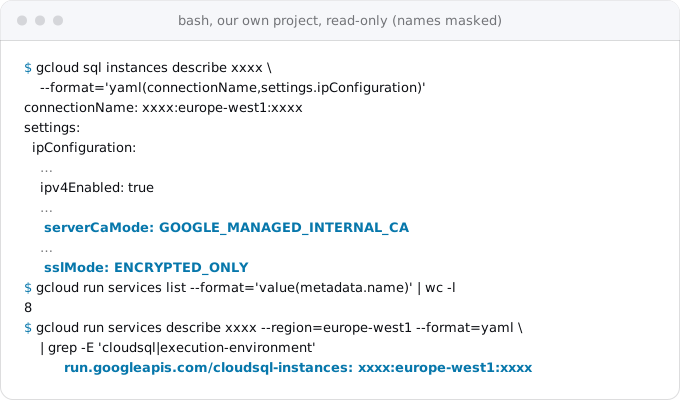
Exodus team: our instance is set to accept encrypted connections only, and the service attached through the socket still connects, because Google's SSL page counts connections through the Auth Proxy and the connectors as encrypted. The setting matters for direct connections, not for the socket.
How many connections
The socket takes care of the network, not of the count. Every Cloud Run instance opens its own pool, so the database sees instances times pool size, and Postgres on the smallest Cloud SQL machine accepts 25 connections by default. When the limit is reached, a new connection fails with a Postgres error; on a local Postgres 17 with the limit set low, the text was "remaining connection slots are reserved for roles with the SUPERUSER attribute".
Connection pooling on Cloud Run shows how to size the pool and --max-instances together, what to set in each library, and what to do when the numbers do not fit, including Cloud SQL's own pooler. Concurrency on Cloud Run has the instance side of the sum, so neither is repeated here.
When to use a connector library
The connectors are Google's libraries for Java, Python, Go and Node.js. They do in your process what Cloud Run's proxy does outside it: fetch the certificate, check IAM, open the TLS tunnel. They need the same Cloud SQL Client role and the Admin API, and they do not need --add-cloudsql-instances. Choose one when:
- The app is Java. Without Unix sockets, the Java connector is how Google's samples connect at all.
- You want no database password. With automatic IAM database authentication, the service account logs in as a Postgres user and the connector supplies a token that lasts one hour, refreshing it for pooled connections. Google documents it for the Auth Proxy and the Go, Java and Python connectors; the Node.js connector's README shows it with
authType: 'IAM'. - 100 connections per instance is too few. The limit does not apply to the connectors.
- You want to choose private or public IP in code, with
ip_typeoripTypes.
Google's samples set the connectors' refresh to lazy, "recommended for serverless environments to avoid background refreshes from throttling CPU": with request-based billing an instance gets CPU only while it serves requests, so a refresh scheduled in the background can stall.
For IAM login, the instance needs the flag cloudsql.iam_authentication=on, which instances created in the console have by default. Beware that gcloud sql instances patch --database-flags replaces the whole list of flags, so include the ones you already set. Then create the database user for the service account, named after its email without .gserviceaccount.com, and grant the role:
gcloud sql users create app-run@PROJECT_ID.iam \
  --instance=app-db --type=cloud_iam_service_account
gcloud projects add-iam-policy-binding PROJECT_ID \
  --member=serviceAccount:app-run@PROJECT_ID.iam.gserviceaccount.com \
  --role=roles/cloudsql.instanceUser
The new user can log in but owns nothing, so grant it access to the app's tables with GRANT. On your laptop, the Auth Proxy does the same job: cloud-sql-proxy --port 5432 PROJECT_ID:europe-west1:app-db listens on 127.0.0.1:5432 with your own gcloud auth application-default login, and --auto-iam-authn turns on IAM login.
Private IP
A private IP removes the instance from the internet entirely, which some companies require. It takes more setup and moves two jobs to you.
The instance joins your VPC network through private services access, a link between your network and the one Google's managed services live in, for which you reserve an address range of at least /24 (Google recommends /16). The service then needs a path into that network, and Google recommends Direct VPC egress, which gives its instances addresses in one of your network's subnets (address ranges) and adds no charge beyond network traffic:
gcloud run deploy app --image=IMAGE --region=europe-west1 \
  --network=default --subnet=default --vpc-egress=private-ranges-only \
  --set-env-vars=DB_HOST=PRIVATE_IP --set-secrets=DB_PASS=db-pass:1
private-ranges-only is the default and sends only private addresses through the network. The driver connects to the instance's private IP on port 5432 over TCP, with no proxy in between. That is the first job that moves to you: Google says to enforce SSL on the instance and set it up in the driver, sslmode=require for libpq. The second is that the IAM check is gone, so the network and the password are all that stand between the service and the database. The subnet size, firewall rules and cold-start notes for Direct VPC egress are in moving a Compute Engine VM to Cloud Run.
What it costs
The connection itself has no price on Google's pricing pages; you pay for the instance, its disk and the traffic. Traffic between Cloud Run and Cloud SQL in the same region is free on both sides: Cloud Run's pricing page charges nothing for transfer to Google Cloud resources in the same region, and Cloud SQL's charges nothing for traffic into the instance or out to Google products on the same continent. Our own bill showed the instance's network lines at $0, as the smallest instances guide shows.
Two charges appear around it. A public IPv4 address costs $0.01 an hour only while the instance is idle, that is, stopped; a running instance shows no IP line. And on the private path, Direct VPC egress has no charge of its own, while the older Serverless VPC Access connector runs at least two VMs that bill even with no traffic. A service in another region than its database pays inter-region transfer on Cloud Run's side and adds a longer round trip to every query; egress on Google Cloud has the prices.
What breaks
- "No such file or directory" on the socket path. The revision has no Cloud SQL connection, the connection name has a typo, or the driver got the path in the wrong place and looked elsewhere, as psql did in our test. Check the annotation with the
services listcommand above. - "Cloud SQL connection failed ... ensure that the account has access ... NOT_AUTHORIZED" in the service's logs. The IAM check failed: the service's account lacks the Cloud SQL Client role, it runs as a different account than you granted, or the Admin API is off in one of the two projects.
- A login error from Postgres. The IAM check passed and the password or user is wrong, for example a password changed on the instance but not in the secret version the revision reads.
- "remaining connection slots are reserved". The pool times the instances passed
max_connections. - Connections fail after the instance's CA mode changed. The shared and customer-managed CA modes do not accept connections from the first generation execution environment, and a service with no environment set may run in either. Deploy with
--execution-environment=gen2before you change the mode, and remember that per-instance CA, the default, cannot be chosen again afterwards. - 429 rateLimitExceeded from the Admin API. Too many instances fetching certificates in the same minute. Cap
--max-instances, as Google suggests. - A socket path over 108 characters. Shorten the instance name, or use a connector.
Checklist
- Enable the Cloud SQL Admin API in the service's project, and in the instance's if it differs.
- Put the instance in the service's region and copy its connection name.
- Create a dedicated service account with Cloud SQL Client and access to the password secret only.
- Deploy with
--add-cloudsql-instancesand the password from Secret Manager, pinned to a version. - Write the connection string in the form your driver wants, and test it locally against a socket directory before the first deploy.
- Size the pool and
--max-instancesagainstmax_connections. - Java, passwordless login or more than 100 connections an instance: use a connector library with lazy refresh.
- No public IP allowed: private services access, Direct VPC egress, SSL enforced on the instance and in the driver.
- Set
--execution-environment=gen2before moving the instance to a shared or customer-managed CA.
Where Exodus comes in
When Exodus audits a repository, it reads how the app connects today: the DATABASE_URL and its driver, the ORM, the pool settings. The plan lists the connection string the app needs on Cloud Run for its own driver, the role and the flag, and checks the pool against the instance's limit, so the agent that runs the move writes the right line the first time.
FAQ
Do I need a VPC connector to reach Cloud SQL from Cloud Run?
No. The built-in connection reaches the instance's public IP over TLS after an IAM check, with no VPC setup and no allowlist. Only a private IP needs a path into your network, and there Google recommends Direct VPC egress, which has no charge of its own, over a Serverless VPC Access connector that bills at least two VMs.
Why does Cloud Run log NOT_AUTHORIZED when connecting to Cloud SQL?
The IAM check failed before Postgres was reached. The service's account lacks the Cloud SQL Client role, the service runs as a different account than the one you granted, or the Cloud SQL Admin API is off in the service's project or the instance's. A wrong password shows up as a Postgres login error instead.
How many connections can a Cloud Run instance open to Cloud SQL?
At most 100 per Cloud Run instance through the built-in /cloudsql connection; the limit does not apply to the connector libraries or a private IP. The database's own limit is usually lower: Postgres on the smallest Cloud SQL instance accepts 25 by default, so the pool size times the instances has to fit under it.
How does a Java app on Cloud Run connect to Cloud SQL?
Through Google's Cloud SQL Java connector, used as a JDBC socket factory, because Java has no native Unix sockets. The URL names the database, the instance connection name in cloudSqlInstance and the connector's SocketFactory class. It needs the same Cloud SQL Client role and the Admin API, but not --add-cloudsql-instances.
Sources
28
- docs.cloud.google.comConnect from Cloud Run, Cloud SQL for PostgreSQL, Google
- docs.cloud.google.comChoose how to connect to Cloud SQL, Google
- docs.cloud.google.comAbout the Cloud SQL Auth Proxy, Google
- docs.cloud.google.comConnect using the Cloud SQL Auth Proxy, Google
- docs.cloud.google.comCloud SQL Language Connectors overview, Google
- docs.cloud.google.comCloud SQL quotas and limits, Google
- docs.cloud.google.comAuthorize with SSL/TLS certificates, Cloud SQL for PostgreSQL, Google
- docs.cloud.google.comSelect an execution environment for services, Cloud Run, Google
- docs.cloud.google.comIAM authentication, Cloud SQL for PostgreSQL, Google
- docs.cloud.google.comLog in using IAM database authentication, Google
- docs.cloud.google.comManage users with IAM database authentication, Google
- docs.cloud.google.comCreate and manage users, Cloud SQL for PostgreSQL, Google
- github.comCloud SQL Node.js Connector, GoogleCloudPlatform on GitHub
- docs.cloud.google.comLearn about using private IP, Cloud SQL, Google
- docs.cloud.google.comCompare Direct VPC egress and VPC connectors, Cloud Run, Google
- docs.cloud.google.comManaged Connection Pooling overview, Cloud SQL, Google
- docs.cloud.google.comManage database connections, Cloud SQL, Google
- cloud.google.comCloud SQL pricing, Google
- postgresql.orglibpq connection strings, PostgreSQL 18 documentation
- node-postgres.comnode-postgres, Connecting
- prisma.ioPrisma ORM 6, PostgreSQL
- docs.sqlalchemy.orgSQLAlchemy 2.0, PostgreSQL dialect
- docs.djangoproject.comDjango settings, HOST
- github.comUnable to connect Cloud SQL with Firebase Functions V2, firebase/firebase-functions issue 1375 on GitHub
- docs.cloud.google.comDatabase flags, Cloud SQL for PostgreSQL, Google
- docs.cloud.google.comConfigure SSL/TLS certificates, Cloud SQL for PostgreSQL, Google
- docs.cloud.google.comgcloud reference, Google Cloud SDK 587.0.0
- Exodus team: a local copy of the /cloudsql socket