Files that users upload to a Cloud Run service belong in a Cloud Storage bucket, not on the instance's disk. That disk is memory: other instances never see a file on it, and it is gone when the instance stops. The service signs short-lived URLs and the browser sends the bytes to the bucket. Storage costs $0.02 per GB a month in Belgium; the bill is the downloads.
In short
- An instance's file system is in memory and does not persist: fifty 10 MB uploads are enough to crash a 512 MiB instance.
- Cloud Run caps an HTTP/1 request at 32 MiB, so uploads go from the browser to the bucket with a signed PUT URL, valid 15 minutes in the sample, and downloads with a signed GET URL of 5 minutes.
- A bucket in
europe-west1costs $0.02 per GB a month, $0.005 per 1,000 uploads and $0.12 per GB sent to the internet: a medium app pays $1.32 for storage and operations and $12.00 for transfer. - Soft delete keeps deleted objects for 7 days and bills them at the storage rate;
--soft-delete-duration=0turns it off.
Prices are Google's list prices for europe-west1, read on October 11, 2026, before VAT.
Why files on local disk break
On a server with a disk, uploads go to a folder such as ./uploads, which comes up in every move from a VPS to Cloud Run; on Cloud Run it is one of the patterns that break. Cloud Run gives each instance a writable file system, but Google's runtime contract says two things about it: it is an in-memory file system, so writing to it uses the instance's memory, and data written to it does not persist when the instance stops. Three habits fail because of that.
- Other instances never see the file. Cloud Run starts a second instance when traffic grows, and a deploy starts new ones. An upload saved to
./uploadson instance A is a 404 when the next request lands on instance B. - The file is gone when the instance stops. A service with no traffic scales to zero. Every file written since the instance started goes with it.
- The file eats memory. You cannot set a size limit on that file system, and the contract warns that filling it can use up all the memory and crash the instance. Fifty 10 MB uploads on a 512 MiB instance are enough.
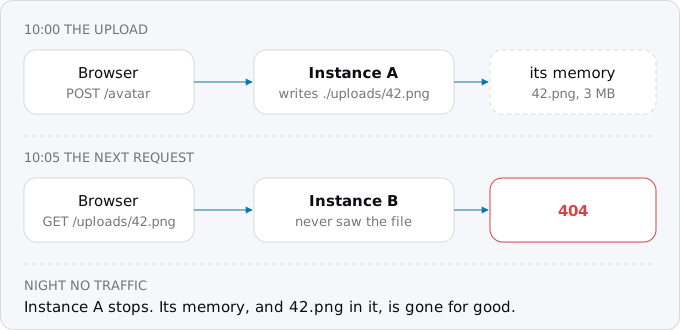
The code that does this is usually a library default: Multer's dest (its memory storage can run the app out of memory, its docs warn), Active Storage's Disk service, Django's FileSystemStorage under MEDIA_ROOT, Laravel's local and public disks, or fs.writeFile into a data folder.
A temporary file inside one request is fine. Resizing an image, unzipping an archive or building a PDF can use /tmp, as long as the file fits in memory next to the app and is deleted at the end of the request.
What Cloud Storage is
Cloud Storage keeps objects (files) in buckets. A bucket lives in a location, for example europe-west1 in Belgium, the same region as your service. An object has a name, its bytes and some metadata such as Content-Type. There are no real folders: uploads/42.png is one name with a slash in it, and tools show the slashes as folders.
Every instance reads the same bucket, the files outlive any instance, and an object can be up to 5 TiB. Google allows one write per second to the same object name and no limit across names, so give each upload its own random name.
Access is controlled by IAM, Google Cloud's permission system. Uniform bucket-level access turns off per-object permission lists (ACLs), and public access prevention stops anyone making objects public by mistake. Both are set in Step 2.
Three ways to use a bucket from Cloud Run
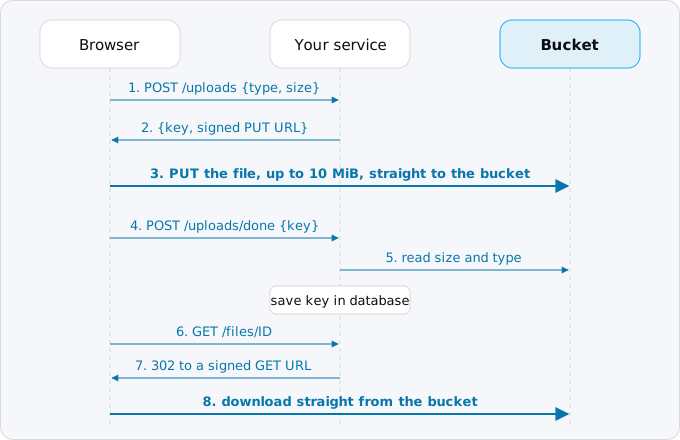
Signed URLs: the browser talks to the bucket. Your service checks the user and signs a URL that allows one PUT (upload) or one GET (download) of one object for a few minutes. The bytes go between the browser and Google; your service handles two small JSON requests. This is the default for user uploads and downloads, and the rest of the article builds it.
Through your service with the client library. The browser posts the file to your service, which streams it to the bucket with file.createWriteStream() or the like. Every byte passes through your instance, the request lasts as long as the user's upload, and Cloud Run caps an HTTP/1 request at 32 MiB (no limit with an HTTP/2 server). Use it for small files the server creates, such as a generated invoice.
A Cloud Storage volume mount. gcloud run services update --add-volume type=cloud-storage mounts a bucket as a folder through Cloud Storage FUSE, so old code that reads and writes paths keeps working. Google lists the catch: FUSE is not a POSIX file system, has no file locking, and "when multiple writes try to replace a file, the last write wins and all previous writes are lost." It fits read-mostly data such as templates or the model of a GPU service on Cloud Run, not user uploads.
For scratch space, not storage, an in-memory volume with a size limit fails a write past the limit instead of killing the instance, and an ephemeral disk (Preview on Oct 11, 2026) gives each instance a disk of 1 to 100 GiB, deleted when it stops.
What it costs
Cloud Storage bills four things. The prices are list prices for a bucket in europe-west1, from Google's pricing page and the Cloud Billing Catalog API, read Oct 11, 2026, before VAT:
- Storage: $0.02 per GB a month for the Standard class.
- Class A operations (uploads, listings): $0.005 per 1,000.
- Class B operations (reads of an object or its metadata): $0.0004 per 1,000.
- Data sent to the internet: $0.12 per GB to most of the world up to 10 TiB a month, then less. Uploads into the bucket are free.
The Always Free tier (5 GB-months, 5,000 Class A and 50,000 Class B operations, 100 GB of transfer) applies to US regions only, so a Belgian bucket pays from the first byte.
Three cases, each with a month of files:
- Small: 2 GB stored, 2,000 uploads, 20,000 downloads, 10 GB sent. Storage and writes come to about $0.05 a month; reads bring it to $0.06, and the 10 GB sent is $1.20.
- Medium: 50 GB stored, 20,000 uploads, 500,000 downloads, 100 GB sent: $1.32 for storage and operations, $12.00 for transfer.
- Large: 500 GB stored, 200,000 uploads, 5 million downloads, 1 TiB sent: $13.23 and $122.88.
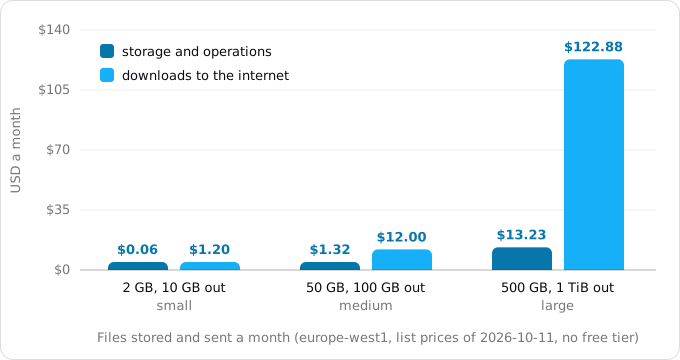
The bytes sent dominate, so that is the number to estimate. Sending a file through your Cloud Run service costs about the same ($0.105 per GiB to users in Europe) plus the instance time, so it saves little. Egress on Google Cloud explained covers the rates and how to lower them.
The storage figures include soft delete. A new bucket keeps deleted objects for 7 days, and they keep billing at the storage rate the whole time. Google's blog gives the formula, 7 / 30.4375 of a month per deleted GB: the large case deletes 50 GB a month, which adds $0.23. For a bucket of short-lived files, such as exports deleted after an hour, the 7 days can cost more than the live data. Set --soft-delete-duration=0 on such buckets.
The shared disk you might reach for instead, Filestore over NFS, starts at 1 TiB on the Basic HDD tier and bills what you provision: $184.32 a month in Belgium.
Step by step
The examples use a project PROJECT_ID, the region europe-west1, a service shop that runs as its own service account shop-api (its identity), and a bucket shop-uploads. Every gcloud flag here was checked against gcloud 587.0.0.
Step 1: find the code that writes files
grep -rnE "multer|diskStorage|createWriteStream|writeFile|uploads/" --include='*.[jt]s' --include='*.mjs' . | grep -v node_modules
grep -rnE "MEDIA_ROOT|FileSystemStorage|DEFAULT_FILE_STORAGE|STORAGES" --include='*.py' .
grep -rnE "service: Disk|active_storage.service|:local" config/
grep -rnE "Storage::disk|'local'|'public'" --include='*.php' app config
For each hit, write down what the file is, who may read it, how big it gets, and whether the database stores its path. Files the app can rebuild may not need a bucket.
Step 2: create the bucket
gcloud storage buckets create gs://shop-uploads --project PROJECT_ID \
  --location europe-west1 --default-storage-class STANDARD \
  --uniform-bucket-level-access --public-access-prevention
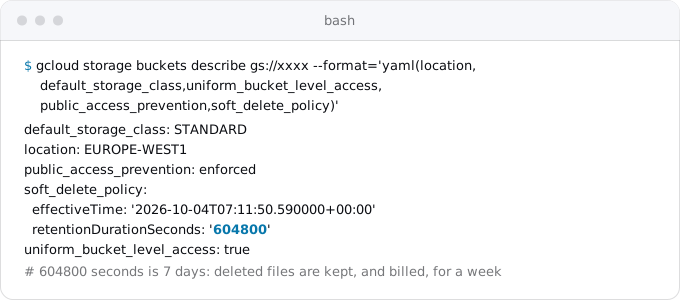
Bucket names are global, so shop-uploads may be taken; add your project name. gcloud's default for uniform access is off, so pass the flag. Soft delete is on with 7 days unless --soft-delete-duration says otherwise (0 turns it off).
Here is one of our buckets, private and IAM-only, where nobody set soft delete:
Step 3: give the service permission to use the bucket and to sign
gcloud services enable iamcredentials.googleapis.com --project PROJECT_ID

gcloud storage buckets add-iam-policy-binding gs://shop-uploads \
  --member serviceAccount:shop-api@PROJECT_ID.iam.gserviceaccount.com \
  --role roles/storage.objectUser

gcloud iam service-accounts add-iam-policy-binding shop-api@PROJECT_ID.iam.gserviceaccount.com \
  --member serviceAccount:shop-api@PROJECT_ID.iam.gserviceaccount.com \
  --role roles/iam.serviceAccountTokenCreator --project PROJECT_ID
The service account comes from gcloud iam service-accounts create shop-api. The first role lets it create, read and delete objects in this bucket only; roles/storage.objectCreator alone cannot read or delete, and the code needs both.
The second grant is the one that gets missed. A signed URL needs a private key, and on Cloud Run there is no key file, so the client library asks the IAM Credentials API to sign with Google's key for the account (signBlob). For that the account must hold Service Account Token Creator on itself and the API must be on; without them, signing fails while every other bucket call works. django-storages notes that signBlob has a quota.
Then deploy the service as that account, with the bucket in an environment variable:
gcloud run deploy shop --source . --region europe-west1 \
  --service-account shop-api@PROJECT_ID.iam.gserviceaccount.com \
  --set-env-vars BUCKET=shop-uploads
Step 4: allow the browser to PUT to the bucket
A PUT from https://shop.example.com to storage.googleapis.com is a cross-origin request, which browsers block unless the target agrees, so the bucket needs a CORS rule in cors.json:
[
  {
    "origin": ["https://shop.example.com"],
    "method": ["PUT", "GET"],
    "responseHeader": ["Content-Type", "x-goog-content-length-range"],
    "maxAgeSeconds": 3600
  }
]
gcloud storage buckets update gs://shop-uploads --cors-file=cors.jsonOn a preflight (the browser's check request before the PUT), Cloud Storage checks the headers it announces against responseHeader; a missing header means no CORS answer, and the browser blocks the upload. Add every origin the app is served from, including staging.
Step 5: sign uploads in the service
The service below has three routes. POST /uploads checks the type and declared size, picks a random object name and signs a PUT URL for 15 minutes, with the content type and a size range inside the signature. POST /uploads/done reads the object's real size and type, deletes it if they are wrong, and stores the key. GET /files/ID redirects to a signed GET URL for 5 minutes. It uses Node's http module so it runs as is.
// Uploads straight to Cloud Storage: the service signs, the browser sends the bytes.
import http from 'node:http'
import { randomUUID } from 'node:crypto'
import { Storage } from '@google-cloud/storage'

const { BUCKET, PORT = 8080 } = process.env
const bucket = new Storage().bucket(BUCKET)
const MAX = 10 * 1024 * 1024 // 10 MiB
const TYPES = new Set(['image/jpeg', 'image/png', 'application/pdf'])
const files = new Map() // stands in for your database table

const json = (res, status, body) =>
  res.writeHead(status, { 'content-type': 'application/json' }).end(JSON.stringify(body))
const readJson = async (req) => {
  let s = ''
  for await (const chunk of req) s += chunk
  return JSON.parse(s || '{}')
}

http.createServer(async (req, res) => {
  try {
    // 1. The browser asks for an upload URL. Check the user and the file here.
    if (req.method === 'POST' && req.url === '/uploads') {
      const { type, size } = await readJson(req)
      if (!TYPES.has(type) || !(size > 0 && size <= MAX)) return json(res, 400, { error: 'type or size' })
      const key = `uploads/${randomUUID()}`
      const headers = { 'content-type': type, 'x-goog-content-length-range': `0,${MAX}` }
      const [url] = await bucket.file(key).getSignedUrl({
        version: 'v4', action: 'write', expires: Date.now() + 15 * 60 * 1000,
        contentType: type, extensionHeaders: { 'x-goog-content-length-range': `0,${MAX}` },
      })
      return json(res, 200, { key, url, headers })
    }
    // 2. The browser PUT the file to `url` with `headers`, then says it is done.
    if (req.method === 'POST' && req.url === '/uploads/done') {
      const { key } = await readJson(req)
      if (!/^uploads\/[0-9a-f-]{36}$/.test(key ?? '')) return json(res, 400, { error: 'key' })
      const [meta] = await bucket.file(key).getMetadata()
      if (Number(meta.size) > MAX || !TYPES.has(meta.contentType)) {
        await bucket.file(key).delete()
        return json(res, 400, { error: 'rejected' })
      }
      const id = key.slice(8)
      files.set(id, { key, type: meta.contentType, size: Number(meta.size) })
      return json(res, 200, { id, size: Number(meta.size) })
    }
    // 3. Downloads: check access, then redirect to a short-lived signed GET URL.
    const m = /^\/files\/([0-9a-f-]{36})$/.exec(req.url)
    if (req.method === 'GET' && m && files.has(m[1])) {
      const [url] = await bucket.file(files.get(m[1]).key).getSignedUrl({
        version: 'v4', action: 'read', expires: Date.now() + 5 * 60 * 1000,
        responseDisposition: 'attachment',
      })
      return res.writeHead(302, { location: url }).end()
    }
    json(res, 404, { error: 'not found' })
  } catch (e) {
    console.error(e)
    json(res, e.code === 404 ? 404 : 500, { error: 'failed' })
  }
}).listen(PORT, () => console.log(`uploads on :${PORT}`))
In the browser, the upload is two requests and a confirmation:
const r = await fetch('/uploads', { method: 'POST', body: JSON.stringify({ type: file.type, size: file.size }) })
const { key, url, headers } = await r.json()
await fetch(url, { method: 'PUT', headers, body: file })
await fetch('/uploads/done', { method: 'POST', body: JSON.stringify({ key }) })
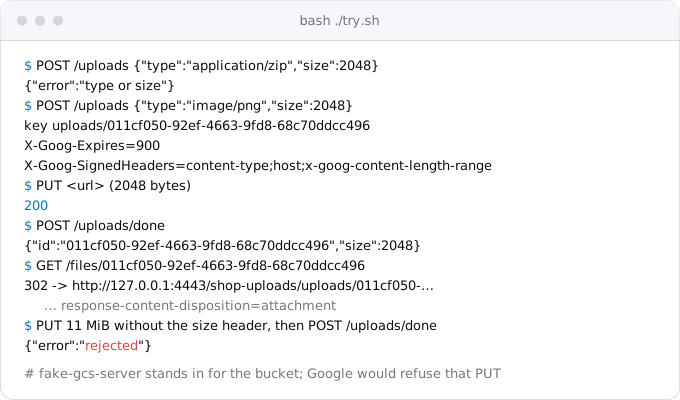
The size check works twice. A signed URL lists the headers that every request using it must carry (X-Goog-SignedHeaders), so the browser has to send x-goog-content-length-range: 0,10485760, and Cloud Storage answers 400 to a PUT whose body falls outside that range. If someone strips the header, the signature no longer matches and the PUT fails. The check in /uploads/done catches anything else, and is where you would check an image's real format.
We ran this service against fake-gcs-server, an open-source Cloud Storage emulator, with real V4 signing from a throwaway key. The emulator checks neither signatures nor sizes, so the last PUT got through to step 2:
For large files on slow connections, a resumable upload continues after a dropped connection. Google suggests the server start the session (a POST with x-goog-resumable: start) and hand the session URI to the browser, where it works as a credential like a signed URL.
Step 6: downloads
With GET /files/ID your code decides who may read a file and the bytes come from the bucket; attachment makes the browser save it instead of rendering it. Serve user files from the bucket's own address and never from your domain, so an uploaded HTML or SVG file cannot run script as your site.
Files that everyone may see, such as product photos, can live in a second, public bucket: create it without --public-access-prevention and grant roles/storage.objectViewer to allUsers. With prevention enforced, that grant fails with 412 Precondition Failed, which is why user uploads stay in the other bucket.
Step 7: move the files you have
gcloud storage rsync ./uploads gs://shop-uploads/uploads --recursive --dry-run
gcloud storage rsync ./uploads gs://shop-uploads/uploads --recursive
Run it a day before the switch and again during it; the second run copies only what changed. Object names match the old paths, so database rows that store uploads/42.png still point at the right file. If your files live in Amazon S3, as in a move from AWS to Cloud Run, gcloud reads s3:// URLs once your AWS keys are in ~/.aws/credentials: gcloud storage rsync s3://old-bucket gs://shop-uploads --recursive. For millions of objects, Storage Transfer Service runs it as a managed job, free on Google's side; AWS bills its egress.
Code that built public/uploads/... URLs now builds /files/ID or the public bucket's address.
Step 8: work after an upload
Thumbnails and virus scans should not run while the user waits. Eventarc, Google's event router, can deliver Cloud Storage's "object finalized" event to a Cloud Run service:
gcloud eventarc triggers create shop-uploads-finalized --location europe-west1 \
  --destination-run-service shop-worker --destination-run-region europe-west1 \
  --destination-run-path /events/upload \
  --event-filters type=google.cloud.storage.object.v1.finalized \
  --event-filters bucket=shop-uploads \
  --service-account shop-events@PROJECT_ID.iam.gserviceaccount.com
Eventarc charges $0 for events from Google sources; the Pub/Sub transport underneath bills cents for most apps. Google's guide lists the roles the trigger needs. For work you start yourself, see background workers with Cloud Tasks.
How your framework maps
- Express with Multer: replace
destand memory storage with the signed URL flow above. For small server-side files, stream intobucket.file(key).createWriteStream(). - Rails Active Storage: declare a
GCSservice inconfig/storage.ymland turn on direct uploads; the Rails guide lists the CORS headers it sends (Content-Type,Content-MD5,Content-Disposition). - Django: django-storages'
GoogleCloudStoragebackend withGS_BUCKET_NAME, andGS_IAM_SIGN_BLOB = Trueso URLs are signed throughsignBlobinstead of a key file. - Laravel: the framework has no Google driver; its
s3driver can talk to Cloud Storage's XML API with HMAC keys (Google's "simple migration"). Test temporary URLs on a staging bucket first.
What breaks
- The browser says CORS. The bucket has no rule for your origin, or a header the upload sends is missing from
responseHeader. - 403 SignatureDoesNotMatch. The PUT's
Content-Typeor another signed header differs from what was signed. Send exactly theheadersthe service returned. - Signing fails on Cloud Run only. Your laptop signs with a key file; Cloud Run needs Token Creator and the IAM Credentials API (Step 3).
- A leaked URL. Anyone who has a signed URL can use it until it expires (V4 allows up to 7 days;
gcloud storage sign-urlcaps at 12 hours with Google's key), so keep download URLs to minutes. - The instance restarts under load. Something still buffers whole files in memory: Multer memory storage, a FUSE mount,
/tmp. - Files never confirmed. A user who closes the tab after the PUT leaves an object with no database row. A nightly job that deletes
uploads/objects older than a day with no row fixes it; see cron and timers with Cloud Scheduler.
Where Exodus comes in
When Exodus audits a repository with your coding agent, writes to local disk are one of the things it looks for: Multer's dest, an Active Storage local service, MEDIA_ROOT, a public/uploads folder in the repository. Each one shows up in the report as a change to make before the move, with the bucket, the permissions and the upload flow above as the plan, and the bucket's storage and transfer counted in the monthly estimate.
FAQ
Does Cloud Run have a persistent disk for uploads?
No. Cloud Run's file system lives in the instance's memory and is lost when the instance stops, and other instances never see what one instance wrote. User files go to a Cloud Storage bucket. An ephemeral disk of 1 to 100 GiB, in Preview, is scratch space that is deleted with the instance.
How large a file can I upload to Cloud Run?
Cloud Run caps an HTTP/1 request at 32 MiB, with no limit for an HTTP/2 server. A signed URL avoids the cap: the browser sends the file straight to Cloud Storage, where one object can be up to 5 TiB, and the size range in the signature limits what a user may send.
Can I mount a Cloud Storage bucket as a folder on Cloud Run?
Yes, a Cloud Storage volume mount uses Cloud Storage FUSE. It is not a POSIX file system: it has no file locking, and when two writes replace the same file, the last one wins. It suits read-mostly data such as templates or a model file, not user uploads.
Why does signing a URL fail on Cloud Run but work on my laptop?
Your laptop signs with a key file; Cloud Run has none, so the client library asks the IAM Credentials API to sign. The service account needs Service Account Token Creator on itself, and the IAM Credentials API must be on.
How much does Cloud Storage cost for a small app?
In europe-west1, 2 GB stored, 2,000 uploads and 20,000 downloads cost about $0.06 a month. Sending 10 GB to users adds $1.20. Uploads into the bucket are free, and the Always Free tier applies to US regions only.
Sources
35
- docs.cloud.google.comContainer runtime contract, Google
- docs.cloud.google.comCloud Run quotas and limits, Google
- docs.cloud.google.comConfigure in-memory volume mounts for services, Google
- docs.cloud.google.comConfigure an ephemeral disk for Cloud Run services, Google
- docs.cloud.google.comConfigure Cloud Storage volume mounts for services, Google
- docs.cloud.google.comCloud Storage FUSE overview, Google
- cloud.google.comCloud Storage pricing, Google
- cloud.google.comCloud Storage pricing examples, Google
- docs.cloud.google.comCloud Storage quotas and limits, Google
- docs.cloud.google.comSoft delete overview, Google
- cloud.google.comManaging Cloud Storage soft delete at scale, Google Cloud blog
- docs.cloud.google.comPublic access prevention, Google
- docs.cloud.google.comUniform bucket-level access, Google
- docs.cloud.google.comSigned URLs, Google
- docs.cloud.google.comV4 signing process with Cloud Storage tools, Google
- docs.cloud.google.comgcloud storage sign-url reference, Google
- docs.cloud.google.comIAM Service Account Credentials API, Google
- docs.cloud.google.comXML API headers, Google
- docs.cloud.google.comCross-origin resource sharing, Google
- docs.cloud.google.comSet up and view CORS configurations, Google
- docs.cloud.google.comSigned URLs and resumable uploads, Google
- docs.cloud.google.comgcloud storage rsync reference, Google
- docs.cloud.google.comInteroperability with other storage providers, Google
- cloud.google.comStorage Transfer Service pricing, Google
- docs.cloud.google.comRoute Cloud Storage events to Cloud Run, Google
- cloud.google.comEventarc pricing, Google
- docs.cloud.google.comFilestore service tiers, Google
- cloud.google.comFilestore pricing, Google
- cloud.google.comNetwork pricing, Google
- docs.cloud.google.comSimple migration from Amazon S3 to Cloud Storage, Google
- laravel.comFile Storage, Laravel docs
- expressjs.comMulter, Express
- guides.rubyonrails.orgActive Storage overview, Rails Guides
- django-storages.readthedocs.iodjango-storages, Google Cloud Storage backend
- Exodus team: Cloud Billing Catalog API prices, gcloud 587.0.0 help, a bucket's settings, and the sample upload service run against fake-gcs-server, Oct 11, 2026