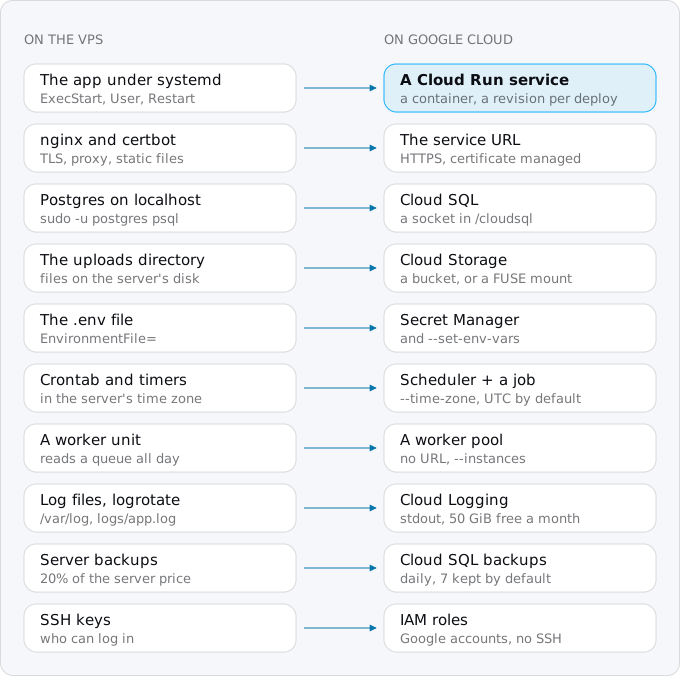
Moving from a VPS to Cloud Run puts the app in a container and turns every other piece of the server into a Google service: Postgres into Cloud SQL, uploads into Cloud Storage, crontab into Cloud Scheduler and jobs, nginx into Cloud Run's HTTPS. In our model the bill goes up, from $8.39 to $12.59 a month to $9.59 to $174.52, so move for the work saved.
In short
- On price the VPS wins at every size in our model: $8.39 to $12.59 a month on Hetzner against $9.59 to $174.52 on Cloud Run with Cloud SQL.
- The systemd unit becomes a Dockerfile; the app listens on PORT, 8080 by default, and finishes within 10 seconds of SIGTERM, where systemd gave 90.
- Postgres moves with pg_dump and pg_restore, or with Database Migration Service for versions 9.4 to 18 at no extra charge.
- Crontab lines become Cloud Run jobs started by Cloud Scheduler, $0.10 a job a month after 3 free, in the server's time zone rather than UTC.
- Requests stop at 32 MiB over HTTP/1 and 60 minutes, and outbound port 25 is blocked.
Prices exclude VAT and are list prices of October 11, 2026.
When moving pays, and when it does not
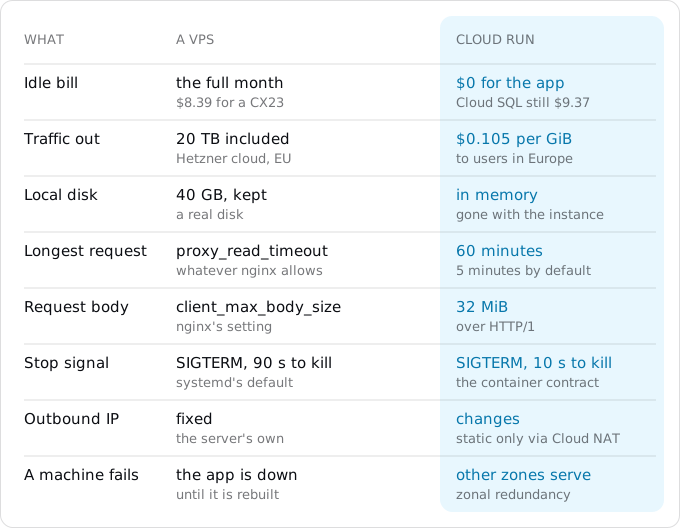
A VPS is cheap. Hetzner's CX23 in Germany or Finland (2 vCPUs, 4 GB of memory, a 40 GB disk) costs $6.49 a month since Hetzner's price change of June 15, 2026, plus $0.60 for its IPv4 address and 20% of the server price for daily backups, $8.39 in all. The CX33 with 4 vCPUs and 8 GB is $12.59 on the same terms. Both include 20 TB of outbound traffic a month. DigitalOcean's Basic droplet with 1 vCPU and 2 GiB is $12 with 2,000 GiB of traffic included ($14.40 with weekly backups); the one with 2 vCPUs and 4 GiB is $24 ($28.80).
On Google Cloud the same app becomes at least three bills. Cloud Run, with request-based billing in a Tier 1 region such as europe-west1, charges $0.000024 per vCPU-second and $0.0000025 per GiB-second while requests are handled, and $0.40 per million requests, after a free tier of 180,000 vCPU-seconds, 360,000 GiB-seconds and 2 million requests a month per billing account. Traffic to users in Europe is $0.105 per GiB from the first gigabyte (the egress guide has the details). The database becomes Cloud SQL: the shared-core db-f1-micro is $9.37 a month with 10 GiB of disk, the db-g1-small $27.25 (the Cloud SQL guide explains both). Uploads go to Cloud Storage at $0.020 per GiB a month.
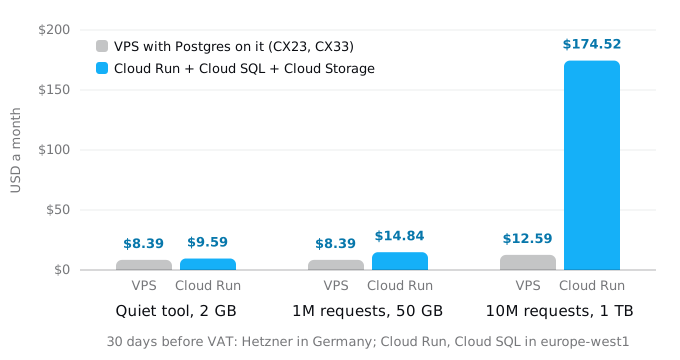
The model is one web app with its database, three sizes:
- A quiet internal tool: 30,000 requests and 2 GB out a month. The CX23 is $8.39. Cloud Run's part fits in the free tier, traffic is $0.20 and storage $0.02, but the Cloud SQL micro is $9.37: $9.59.
- A small app: 1 million requests of 200 ms and 50 GB out. The CX23 handles it, $8.39. On Cloud Run, as an upper bound with no two requests sharing an instance: $0.48 of CPU past the free tier, $4.89 of traffic, the micro at $9.37 and $0.10 of storage, $14.84.
- A busy app: 10 million requests and 1 TB out, which still fits a CX33 and its 20 TB of traffic, $12.59. On Cloud Run: $43.68 of CPU, $1.60 of memory, $3.20 of requests, $97.79 of traffic, a
db-g1-smallat $27.25 because 0.6 GB of memory is too little for a database at this load, and $1.00 of storage, $174.52.
So on price the VPS wins at every size. The database alone on Cloud SQL costs more than a whole Hetzner server, and traffic that the VPS includes is the largest line of the Cloud Run bill. If the bill is the reason to move, do not move.
The reasons to move are the work the server needs: patching the operating system, renewing certificates, restarting after a crash, watching the disk, testing backups. If the one machine fails, the app is down until someone rebuilds it. Cloud Run spreads instances across the zones of a region and keeps running when one zone fails; a deploy creates a revision you can roll back to in one command; Cloud SQL patches Postgres and takes daily backups; a traffic spike starts more instances. Move when that work costs you more than the difference on the bill, when the app has outgrown one machine, or when the rest of your system already lives on Google Cloud. Stay when the load is steady, a lot of data goes out, the app depends on a local disk, or one person runs the server happily. Cloud Run or a VPS weighs that choice in full.
What the server does for you
Start with an inventory, on the server. These commands only read:
systemctl list-units --type=service --state=running --no-pager
systemctl list-timers --all --no-pager
sudo crontab -l -u app; sudo ls /etc/cron.d
sudo nginx -T 2>/dev/null | grep -E 'server_name|proxy_pass|root |client_max_body_size|proxy_read_timeout' | grep -v '#'
sudo ss -tlnp
sudo ls /etc/letsencrypt/live
timedatectl
sudo du -sh /srv/app/uploads /var/log
sudo -u postgres psql -c '\l+'
Replace app with the user the app runs as and /srv/app with its directory. The services list shows the app and anything next to it (a worker, Redis). Timers and crontabs are the scheduled work. The nginx lines give the domain, the upstream port, the static directory, the largest upload and the longest wait. timedatectl gives the time zone the crontab runs in, and the last two lines show how much data moves. We ran the crontab, nginx, ss and psql lines in Debian 13 and Postgres 17 containers set up like a small VPS.
Step 1: the app in a container
Cloud Run runs container images, so the app needs a Dockerfile. If the app already runs in Docker on the server, keep its Dockerfile and read this step for the four code changes; a stack under Compose is mapped service by service in Docker Compose to Cloud Run. Otherwise the systemd unit tells you most of what the Dockerfile needs:
# /etc/systemd/system/shop.service
[Service]
User=app
WorkingDirectory=/srv/app
EnvironmentFile=/srv/app/.env
ExecStart=/usr/bin/node server.mjs
Restart=always
WorkingDirectory becomes WORKDIR, ExecStart becomes CMD, User becomes USER. EnvironmentFile does not go into the image; its values become Cloud Run settings in Step 4. Restart=always has no line: Cloud Run replaces instances itself.
FROM node:24-slim
WORKDIR /srv/app
COPY package*.json ./
RUN npm ci --omit=dev
COPY . .
USER node
CMD ["node", "server.mjs"]
Add a .dockerignore with .env, uploads/, logs/, node_modules/ and .git/, so passwords and user files stay out of the image. Other languages follow the same pattern; the buildpacks guide shows how to skip the Dockerfile.
Four things change for the code itself:
- The port. Cloud Run sends requests to the port in the
PORTvariable, 8080 by default, on0.0.0.0. An app that listens on127.0.0.1:3000behind nginx gets--port=3000at deploy time and must listen on all addresses. - Process managers. pm2 in cluster mode or gunicorn with eight workers filled the machine's cores. On Cloud Run run one process, or one worker per vCPU of the instance, and let Cloud Run add instances; the concurrency guide explains the rest.
- Shutdown. Cloud Run sends
SIGTERMand kills the container 10 seconds later. systemd waits 90 seconds by default, so a slow shutdown that never mattered now gets cut off. HandleSIGTERMby closing the server and finishing open requests; the Fly guide shows the difference. - The CPU. Cloud Run runs Linux x86_64 images. If you build on an ARM Mac, build with
--platform linux/amd64. Cloud Run's second generation execution environment (--execution-environment=gen2, always used by jobs) has full Linux compatibility, so native modules that ran on the VPS run here too.
Then find everything the app writes to disk. Run the image with a read-only file system and a writable /tmp, and every write outside /tmp fails loudly:
docker build -t shop:1 .
docker run --rm --read-only --tmpfs /tmp -p 3000:3000 shop:1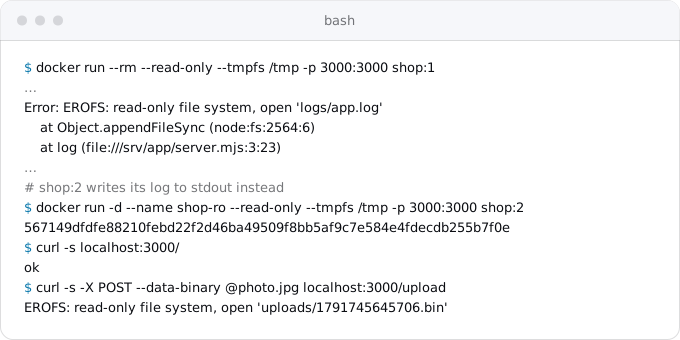
Cloud Run's file system is writable, so the app would start there; the test only finds the writes, because each written file lives in the instance's memory and disappears with it. Our sample crashed on its log file and, once logging went to stdout, failed on an upload.
Step 2: files on disk
Logs go to stdout and stderr. Cloud Run sends them to Cloud Logging, which stores the first 50 GiB per project a month free and charges $0.50 per GiB after that. Remove the log files, the logrotate config and any log shipping agent.
Uploads go to Cloud Storage. The clean way is to change the code: write each upload to a bucket with Google's client library, and serve it either through the app or with signed URLs. If the code is large and paths are everywhere, Cloud Run can mount a bucket as a directory with Cloud Storage FUSE, once the service exists (Step 5):
gcloud storage buckets create gs://PROJECT_ID-uploads --location=europe-west1
gcloud run services update shop --region europe-west1 \
  --add-volume=name=uploads,type=cloud-storage,bucket=PROJECT_ID-uploads \
  --add-volume-mount=volume=uploads,mount-path=/srv/app/uploads
Google lists its limits: no file locking, two writes to the same file lose all but the last, and it is not a full POSIX file system. Uploads with unique names work; a SQLite database or a file several instances append to does not. The files guide compares this with signed URLs.
Copy the existing files ahead of the move and again during the switch; rsync copies only what changed:
gcloud storage rsync /srv/app/uploads gs://PROJECT_ID-uploads --recursiveThat needs gcloud on the server; or rsync the directory to your machine first.
Scratch files in /tmp count against the instance's memory, and filling it crashes the instance. An ephemeral disk for services is in Preview (1 to 100 GiB a volume, 10 GiB an instance by default, deleted with the instance). Files that must outlive a request go to the bucket.
Step 3: the database
Postgres on the server becomes Cloud SQL, a Postgres that Google runs, patches and backs up. Create the instance and the database first (the Cloud SQL guide has the command and the sizes). For a database of a few gigabytes, a dump and a restore during a short write freeze is enough. Postgres on a VPS usually listens only on localhost, so dump on the server and copy the file:
# on the server, after stopping writes
sudo -u postgres pg_dump -Fc --no-owner --no-acl shop > /tmp/shop.dump
# on your machine
scp app@SERVER:/tmp/shop.dump .
Restore through the Cloud SQL Auth Proxy as the App Platform guide shows, and compare row counts. We ran the same dump and restore between two Postgres 17 containers and got the same 1,234 rows on both sides.
For a larger database, or one that cannot stop for long, Google's Database Migration Service copies a self-managed Postgres (versions 9.4 to 18) and then keeps replicating changes until you switch. It needs the pglogical extension on the server, some settings changed and a Postgres restart, and the server must accept connections from Google. For Postgres to Postgres it costs nothing extra.
On Cloud Run the app connects through a Unix socket. Deploy with --add-cloudsql-instances=PROJECT_ID:europe-west1:shop-db, give the service account the Cloud SQL Client role, and set DATABASE_URL to postgresql://shop:PASSWORD@/shop?host=/cloudsql/PROJECT_ID:europe-west1:shop-db. Two things differ from localhost: each query crosses a network, so pages with hundreds of small queries get slower, and every instance opens its own pool: the micro allows 25 connections, so ten instances with a pool of five already run out. Set --max-instances with that in mind.
Redis on the same server, if the inventory showed one, is a decision of its own. As a cache it can often go away; for queues see the background workers guide, for the rest the patterns guide.
Step 4: secrets and settings
The .env file splits in two. Values that are not secret (NODE_ENV, a bucket name, a public URL) become --set-env-vars. Passwords and keys go to Secret Manager, copied by a pipe so they never appear on the screen or in the shell history:
grep '^STRIPE_KEY=' .env | cut -d= -f2- | tr -d '\n' \
  | gcloud secrets create STRIPE_KEY --data-file=-
If the value is in quotes in the file, add sed 's/^"//; s/"$//' before tr. Check lengths, never values: gcloud secrets versions access latest --secret=STRIPE_KEY | wc -c. We checked the pipe on a sample .env byte by byte.
DATABASE_URL changes, since it now points at the socket. Type the new value without echo and pipe it:
read -rs URL && printf '%s' "$URL" | gcloud secrets create DATABASE_URL --data-file=-The service account needs roles/secretmanager.secretAccessor on each secret.
Step 5: deploy
Create a service account for the app, then build the image once and deploy it:
gcloud iam service-accounts create shop
gcloud artifacts repositories create shop --repository-format=docker --location=europe-west1
gcloud builds submit --tag europe-west1-docker.pkg.dev/PROJECT_ID/shop/shop:1
gcloud run deploy shop --region europe-west1 \
  --image europe-west1-docker.pkg.dev/PROJECT_ID/shop/shop:1 \
  --service-account=shop@PROJECT_ID.iam.gserviceaccount.com \
  --allow-unauthenticated --port=3000 \
  --cpu=1 --memory=512Mi --max-instances=5 \
  --add-cloudsql-instances=PROJECT_ID:europe-west1:shop-db \
  --set-env-vars=NODE_ENV=production,UPLOAD_BUCKET=PROJECT_ID-uploads \
  --set-secrets=DATABASE_URL=DATABASE_URL:latest,STRIPE_KEY=STRIPE_KEY:latest
The service account needs roles/cloudsql.client and access to the bucket. The output ends with an HTTPS URL on run.app; test everything there before DNS changes. Building from source with gcloud run deploy --source . also works, as the Vercel guide shows, but a tagged image is what the jobs in the next step reuse.
Step 6: cron, timers and the processes next to the app
On a VPS, cron runs a command on the same machine. On Google Cloud the schedule moves to Cloud Scheduler, and the command runs as a job. Take two lines:
15 3 * * * cd /srv/app && node jobs/cleanup.mjs >> logs/cron.log 2>&1
*/5 * * * * curl -fsS http://127.0.0.1:3000/tasks/run
A command becomes a Cloud Run job, from the same image, and a Scheduler job that starts it:
gcloud run jobs deploy cleanup --region europe-west1 \
  --image europe-west1-docker.pkg.dev/PROJECT_ID/shop/shop:1 \
  --command=node --args=jobs/cleanup.mjs \
  --service-account=shop@PROJECT_ID.iam.gserviceaccount.com \
  --set-cloudsql-instances=PROJECT_ID:europe-west1:shop-db \
  --set-secrets=DATABASE_URL=DATABASE_URL:latest
gcloud scheduler jobs create http cleanup-nightly --location=europe-west1 \
  --schedule="15 3 * * *" --time-zone="Europe/Berlin" \
  --uri=https://run.googleapis.com/v2/projects/PROJECT_ID/locations/europe-west1/jobs/cleanup:run \
  --http-method=POST \
  --oauth-service-account-email=shop@PROJECT_ID.iam.gserviceaccount.com
The account Scheduler uses needs roles/run.invoker on the job. Set --time-zone to what timedatectl printed: Scheduler defaults to UTC, and a crontab runs in the server's zone. Run the job by hand once with gcloud run jobs execute cleanup --region europe-west1 --wait.
A call to localhost becomes a Scheduler HTTP job that calls the service's URL. On the VPS, /tasks/run answered only on localhost, but a public Cloud Run service answers everyone on every path. Either move the task into a job like the one above, or have Scheduler send an OIDC token (--oidc-service-account-email) and make the app verify it before it does anything.
systemd timers move the same way. The cron and timers guide has Scheduler's price, retries and overlap traps.
A second process, such as a worker reading a queue under its own systemd unit, becomes a Cloud Run worker pool with no URL (the ECS guide has the command), or a Cloud Tasks queue (the background workers guide compares them). Work the app does after the response needs instance-based billing; the services, jobs and worker pools guide explains why.
Step 7: nginx, the network and the switch
nginx did several jobs, and each one goes somewhere else:
- TLS and certbot. Cloud Run serves HTTPS with a certificate Google manages. Remove certbot.
- The proxy. Requests reach the container directly. For nginx rules you depend on (rewrites, basic auth), Google documents nginx as a second container in the service.
- Static files from
root /srv/app/publiccome from the app, or from a bucket behind a CDN if they are large. - Upload size (
client_max_body_size). Cloud Run accepts requests up to 32 MiB over HTTP/1. Larger uploads go straight from the browser to Cloud Storage with a signed URL. - Waiting time (
proxy_read_timeout). Cloud Run's request timeout is 5 minutes by default and 60 at most, set with--timeout. WebSocket and SSE connections nginx kept open are covered in WebSockets and SSE on Cloud Run.
Two VPS habits need a decision. A fixed outbound address: if a partner's API allows only your server's IP, note that Cloud Run's address changes. A static one needs a VPC network and a Cloud NAT gateway, and Google warns that with Direct VPC egress this can delay cold starts by 30 seconds or more. Email on port 25: Google Cloud blocks outbound connections to port 25 by default. Send mail through a provider on port 587 or its API.
The domain. Google offers three ways to put it on Cloud Run: a global external Application Load Balancer (the one Google recommends), Firebase Hosting, or Cloud Run domain mapping, which is in Preview. The Vercel guide compares them and gives the order of the switch: lower the DNS TTL a day before, test on the run.app URL, change DNS, keep the old setup for a week. A VPS adds five steps:
- Put the app on the server into maintenance mode, so nothing writes.
- Take the final dump and restore it, or let Database Migration Service catch up and promote the new database.
- Run
gcloud storage rsyncfor the uploads one last time. - Change DNS, then comment out the crontab and stop the timers on the server, so nightly jobs do not run twice.
- Keep the server for a week as the way back. Then take a last backup or snapshot, download it, and delete the server.
What breaks most often
- Files written next to the code (logs, uploads, a cache, a SQLite file) that vanish with every new instance.
- Code that listens on
127.0.0.1or ignoresPORT. - A shutdown that systemd gave 90 seconds and Cloud Run gives 10.
- A crontab moved to Scheduler without its time zone, running an hour or two off.
- A localhost-only endpoint that is now public.
- Too many database connections once several instances each open a pool.
- A partner API that only accepts the old server's IP, or mail sent to port 25.
All of these show up on the run.app URL if you test the jobs, an upload and a sign-in there. The patterns that break on Cloud Run guide covers the rest. For a machine with many services, Google's Migrate to Containers tool turns a Linux VM into container images; for one app, a hand-written Dockerfile is shorter. A Compute Engine VM has its own steps in Compute Engine VM to Cloud Run.
Where Exodus comes in
A VPS rarely keeps its setup in the repository. Exodus's CLI reads what is there (the code, a Dockerfile, deploy scripts, systemd units and nginx configs if committed), and your coding agent reads the code for what the server did implicitly: paths it writes to, localhost calls, port 25, pool sizes. The report lists each piece from the map above with what it becomes, and puts the month on Cloud Run with Cloud SQL next to what the server costs now, traffic included. When the server is cheaper and nothing argues for moving, it says to stay.
FAQ
Is Cloud Run cheaper than a VPS?
Usually not. In our model a Hetzner server costs $8.39 to $12.59 a month with backups and 20 TB of traffic, while the same app on Cloud Run with Cloud SQL costs $9.59 to $174.52. Cloud SQL alone costs more than the whole server, and traffic is the largest line at scale.
How do I move cron jobs from a VPS to Cloud Run?
Each command becomes a Cloud Run job from the app's image, started by a Cloud Scheduler job at $0.10 a month after the first 3 per billing account. Set the time zone the server's crontab used, because Scheduler defaults to UTC, and stop the crontab on the server at the switch.
Can a Cloud Run app keep uploaded files on its disk?
No. Cloud Run's file system lives in the instance's memory and disappears with the instance. Uploads go to a Cloud Storage bucket at $0.020 per GiB a month, through the client library or a Cloud Storage FUSE mount, which has no file locking.
Can Cloud Run send email on port 25?
No. Google Cloud blocks outbound connections to port 25 by default. Send mail through a provider on port 587 or through its API, and check this before the switch, together with any partner API that allowlists the old server's IP address.
How long does Cloud Run wait for an app to shut down?
Cloud Run sends SIGTERM and kills the container 10 seconds later, where systemd waits 90 seconds by default. Handle SIGTERM by closing the server and finishing open requests, so a slow shutdown is not cut off.
Sources
34
- docs.hetzner.comHetzner price adjustment of June 15, 2026, Hetzner docs
- docs.hetzner.comIP pricing, Hetzner docs
- docs.hetzner.comCloud billing FAQ, Hetzner docs
- hetzner.comCost-Optimized cloud servers, Hetzner
- docs.hetzner.comTraffic, Hetzner docs
- digitalocean.comDroplet pricing, DigitalOcean
- docs.digitalocean.comBackups pricing, DigitalOcean docs
- docs.digitalocean.comBandwidth billing, DigitalOcean docs
- cloud.google.comCloud Run pricing, Google
- cloud.google.comCloud SQL pricing, Google
- cloud.google.comCloud Storage pricing, Google
- cloud.google.comGoogle Cloud Observability pricing, Google
- cloud.google.comCloud Scheduler pricing, Google
- docs.cloud.google.comContainer runtime contract, Cloud Run
- docs.cloud.google.comExecution environments, Cloud Run
- docs.cloud.google.comCloud Run quotas and limits, Google
- docs.cloud.google.comConfigure request timeout for services, Cloud Run
- docs.cloud.google.comCloud Storage volume mounts for services, Cloud Run
- docs.cloud.google.comConfigure an ephemeral disk for Cloud Run services, Google
- docs.cloud.google.comConnect from Cloud Run, Cloud SQL for PostgreSQL
- docs.cloud.google.comConfigure your source, Database Migration Service
- cloud.google.comDatabase Migration Service, Google
- docs.cloud.google.comExecute jobs on a schedule, Cloud Run
- docs.cloud.google.comFrontend proxying using Nginx, Cloud Run
- docs.cloud.google.comMap custom domains, Cloud Run
- docs.cloud.google.comStatic outbound IP address, Cloud Run
- docs.cloud.google.comDirect VPC egress with a VPC network, Cloud Run
- docs.cloud.google.comVPC firewall rules, Google
- docs.cloud.google.comUnderstand zonal redundancy, Cloud Run
- docs.cloud.google.comMigrate to Containers overview, Google
- exodus.elim.ioEgress on Google Cloud explained, Exodus
- exodus.elim.ioCloud SQL's smallest instances and what they cost, Exodus
- freedesktop.orgsystemd-system.conf, systemd manual
- Exodus team: a sample Node app containerized from its systemd unit and run read-only in Docker 28, the inventory commands run in a Debian 13 container with nginx and cron, pg_dump and pg_restore between two Postgres 17 containers, the .env pipe checked byte by byte, gcloud 587.0.0 help output; run on Oct 11, 2026; the cost model and its arithmetic